Techmell |
- Moto X Specs, Release Date, Price & Leaked Images
- Turn On Hidden Mini God Mode in Windows 8.1
- Microsoft Reports its own links for Takedown, Google Received DMCA Request
- Customization of Lock Screen in Windows 8.1
| Moto X Specs, Release Date, Price & Leaked Images Posted: 28 Jul 2013 05:19 PM PDT An event scheduled for August 1 is likely to announce the release date and specifications to Motorola's new Smartphone, Moto X. Before Google's Motorola Mobility could make an official statement in New York coming Thursday, much information has already been leaked with photos and specs allegedly of Moto X.
Moto X could be released shortly after the announce or with the annoyance as news from the former Android and Me blog owner, Taylor Wimberly, stated the Moto X devices are being sent to U.S. Carriers as soon as this Monday enabling them to sell Moto X any time after the announcement. Google is known for releasing its products the very day of their announcement thus, making Moto X release to follow the same line, very possible. Moto X specifications have been previously leaked out as well when @evleaks, the phone details leaked, claimed the Smartphone to house a 2GB RAM plus a 1.7GHz dual-core processor, 720p resolution screen and a rear camera at 10MP. The device supposedly ran Android 4.2.2. The information that added to the specs later is much more interesting claiming Moto X to integrate Motorola’s X8 Mobile Computing System. This means the device is going to include eight processing cores. All processing cores have specifically assigned functions. The applications are to be managed by a 1.7GHz processor, GPU handling has quad-core processors, one core are dedicated to language processing that will cater to the new 'Always On' voice command option in Moto X, and another core is for contextual computing. The recent News reported the Moto X will run the latest Android 4.3 Jelly Bean instead and has a gesture sensitive camera which can be switched on straight from the lock screen by merely twisting the wrist twice.  Credit: Engadget
Via: ibTimes The post Moto X Specs, Release Date, Price & Leaked Images appeared first on Techmell.  |
| Turn On Hidden Mini God Mode in Windows 8.1 Posted: 28 Jul 2013 02:26 PM PDT There is a lot of features that have been introduced in Windows 8.1 by Microsoft. Some of them have been discovered by the users. Such as Metro apps, the use of control panel features, lock screen features and bring your favorite games for Windows 7 back to Windows 8.1, etc. Still there are some hidden features the users are unable to discover. One of these hidden features is the "Hidden Mini God Mode in Windows 8.1. As the users know very well that "the god mode" is basically a median place that helps them in approaching the entire system tools and settings. It is a kind of modern Control Panel. This feature helps you in accessing the main tools and features directly and you do not need to waste your time in opening apps and other functions in Windows 8.1. It enables you to open your major tools directly with a single click of the mouse. This is undoubtedly an amazing feature that gives you more ease and comfort while using Windows 8.1. The users will be excited to know that they can access this hidden and amazing feature easily in Windows 8.1. But it does not appear in Windows 8.1 by default and the users have to make it visible with a few mouse clicks. Below you will find how making Hidden mini god mode visible in Windows 8.1 to access its important features. You just need to follow the simple steps given here to make it prominent. Step 1: For making it visible, you need to make sure that you are not in a Metro Start Screen mode. You should be in desktop mode.
Easy Method to Enable Mini God Mode in Windows 8.1Step 1:If you are on Metro start screen, just go to the desktop screen on your Windows 8.1 PC. Step 2: After that simply create a new folder on your desktop. Step 3: Now name this folder with “God Mode.{ED7BA470-8E54-465E-825C-99712043E01C}”, but don’t forget to remove the quotes. Step 4: After doing this, you’ll be able to see an icon like the control panel on the desktop and you can see all available options in Mini God Mode. Now you can access any program quickly by using this hidden mini god mode in Windows 8.1. Isn’t it easy to access system features by using this secret function? The post Turn On Hidden Mini God Mode in Windows 8.1 appeared first on Techmell.  |
| Microsoft Reports its own links for Takedown, Google Received DMCA Request Posted: 28 Jul 2013 02:09 PM PDT It is not uncommon for big names in the technology world to make some pretty senseless mistakes like the one recently made by Microsoft in its DMCA takedown request sent to the giant itself, Google.
What Microsoft did with its DMCA request was to report some of its own links by mistake among the ones that, according to Microsoft, contained content subjected to infringement. A news site, TorrentFreak, informed that Microsoft's automated system sent the request for six links belonging to Microsoft support pages, store and others have been reported to Google and that is simply awkward for a company of such standing. Google, on the other hand, has been more 'responsible' in the matter as not only did it locate the fault but also refrained from taking those links down. This is something from Google receives millions of requests each month to take some or the other illegal content down, most of the copyright claims are bogus. Imagine Google taking down Microsoft's links from its search results on the petition of the company in question itself. As if it wasn't embarrassing enough. Source: Softpedia The post Microsoft Reports its own links for Takedown, Google Received DMCA Request appeared first on Techmell.  |
| Customization of Lock Screen in Windows 8.1 Posted: 28 Jul 2013 12:36 PM PDT Logon Screen is an awesome addition by Microsoft in Windows 8.1 because it is not mere a background image, but displays various important widgets to keep you well versed with immediate notifications. These widgets include calendar, social community upcoming messages, weather, and emails etc. You will be updated even without opening the lock of your system. You can customize the logon screen of Windows 8.1 according to your requirements. Here is how you can play with Logon Screen features to give an amazing look to your system. Change the Background of Logon ScreenStep 1: Click on the "Start" button. Step 2: Now Metro Start Screen will appear before you. You will see a small "-" sign to the right side at the bottom of your screen. Click this sign to go ahead.
|
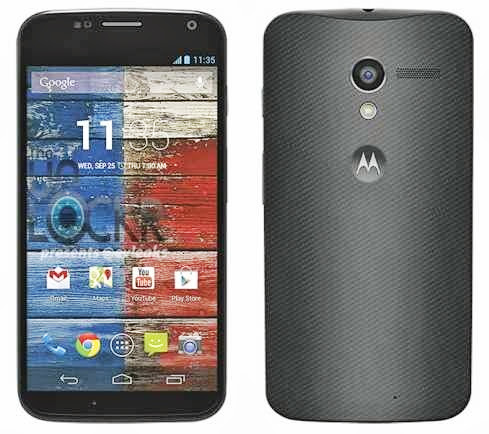 One such rumor reported
  The Smartphone is said to have a rear shell that can be further customized as nowhere else. Fr, a French site, has posted images regarding the matter.
 Step 2: You will see the "Start" button at the bottom of the screen on the left corner. Instead of left click, you need to right click to the "Start" button.
 Now the hidden mini god mode appears on your screen. You will find all of the important programs including Device Manager, RUN, Disk Management, Control Panel, Network Connections, Windows Mobile Shell with admin rights, Programs and Features and many other important programs in the list.
 Similar cases have been reported before. Remember the HBO request to Google? It contained a torrent link directed to an open source VLC media player. HBO's request targeted a fairly legal open source service instead of pointing at some HBO's own issues to shows. Just proves, companies need to think twice before getting at loggerheads with Google.
 Step 3: Once you click this sign, a charms bar will appear on the screen to the right side. Here you need to select the "Settings" option as it has been shown in the image below.
 Step 4: Now you will see the option "Change PC Settings". Click this option to move further.
 Step 5: Here, you will see "Lock Screen" image that should be clicked.
 Step 6: Now the features of "Lock Screen" will appear before you.
 You will see some background images that can be used to your logon screen. Select one of them with a click of the mouse and it will appear in the Preview section. It shows that you have set a background image for your Logon Screen.
 Play a Slide Show to the Lock Screen
 Step 2: Below you will see the option "Add a Folder" under the category "Use Picture From". Click on this option to add your desired folder you want to play in the slide show on your logon screen. Browse for the folder in different locations on your PC and add it.
 Now you will see your favorite pictures running on the Logon Screen in a slide show.


| You are subscribed to email updates from Techmell To stop receiving these emails, you may unsubscribe now. | Email delivery powered by Google |
| Google Inc., 20 West Kinzie, Chicago IL USA 60610 | |
No comments:
Post a Comment