Techmell |
- How to Activate Aero Glass Transparency in Windows 8.1
- Windows 8.1 Enterprise Preview Released, Life Support Ends in 2023
- Samsung Galaxy S4 sets House on Fire after Exploding
- Android 4.3 can Increase Speed of your Nexus 7
- iOS 7 Beta 4 includes Fingerprint Sensor to Home Button
- iTunes 11.1 First Beta Released for OS X, Developers Only Version
| How to Activate Aero Glass Transparency in Windows 8.1 Posted: 30 Jul 2013 01:51 PM PDT In Windows 8.1 the users will not find Aero Glass for their desktop, but you should not worry about it because you can get the Aero Glass look of your desktop in this advanced release by Microsoft by using an easy technique. Aero Glass was one of the main features of older versions of Windows, but now in Windows 8.1 Microsoft has completely abolished it. The method I am going to use below for enabling this option would work perfectly to give this option back to you. It gives a transparent border to your screen if you open any feature or window. Here is how you can activate this option to get back a stylish look of the window. Steps to Activate Aero Glass on Windows 8.1You need to use High contrast theme in this process in order to activate transparent borders outlook of your screen. Step 1: First you need to select the option "Personalize" from the context menu of desktop by right clicking on the desktop.
|
| Windows 8.1 Enterprise Preview Released, Life Support Ends in 2023 Posted: 30 Jul 2013 01:29 PM PDT Last month Microsoft released the Windows 8.1 Pro Preview for users, now just a month after the company has unveiled an entirely new Windows 8.1 Enterprise Preview for Windows users to test out. An assortment of new features has been introduced-Windows To Go, Start Screen Control and DirectAccess is the prominent ones.
Life support for Windows 8.1 remains intact in the Enterprise Preview just as in Windows 8 thus confirming the reports suggested by the blog that Windows 8.1 is headed down the same line as Windows 8. Life support expires in 2023 as per the Lifecycle policy. Some of the main features offered in Windows 8.1 Enterprise are listed in the image here as released by Microsoft officially in a press release.
Download Windows 8.1 Enterprise Preview from Here The post Windows 8.1 Enterprise Preview Released, Life Support Ends in 2023 appeared first on Techmell.  |
| Samsung Galaxy S4 sets House on Fire after Exploding Posted: 30 Jul 2013 12:08 PM PDT Recent reports have been pouring in about a fire incident owing to the use of Samsung's latest Smartphone, Samsung Galaxy S4. According to Xianguo.com, a Chinese website, the fire took place on July 30, 2013 when a couple in Hong Kong got badly injured in a fire set in their house. Allegedly the man in the house, Du, was busy playing games on his Galaxy S4 Smartphone when all of a sudden, the device burst into a blaze.
The affected also claimed his car got damaged which was parked not far from the house outside when the fire reached it. Samsung has been duly reported on the incident and has promised to dig into the matter further. The company is said to perform a chemical examination of the chars obtained from the site to reveal if the Smartphone really belonged to a Samsung factory. The incident is not the first of its kind. Previously, two more incidents have been reported where iPhone devices exploded into flames causing a life and injury to another. In a separate incident, a Chinese woman named Ma Aliun suffered electrocution after she attended a call while her iPhone was still getting charged. Later inquiries revealed that the said woman may have used a 'fake' charger for the purpose. Resultantly, China warned the users against the use of 'fake', a practice quite popular countrywide. According to an explanation by a telecommunication expert, Xiang Ligang, “The quality of the capacitor and circuit protector may not be good, and this may lead to the capacitor breaking down and sending 220 volts of electricity directly into the cell phone battery.” Via: Dbv.vn The post Samsung Galaxy S4 sets House on Fire after Exploding appeared first on Techmell.  |
| Android 4.3 can Increase Speed of your Nexus 7 Posted: 30 Jul 2013 11:49 AM PDT Nexus 7 release in June last year made quite a stir among the users and critics alike but the device soon fell into being labeled as slow when the performance slowed down to a level when users completely gave up on Nexus 7. It has been a year, and nexus 7 has resurfaced in Google discussions as the latest Android update, Android 4.3 Jellybean has come up as a solution to the Nexus 7 issue.
Now you can enjoy all the latest features offered by Android 4.3 regardless of whether your Nexus 7 device is still operating the year old Android 4.1 or Android 4.2. The latest update will not only restore your Nexus 7 to factory fresh state but it also comes as a free update from Google so no need to fret over complicated tasks to get the update done. A mere factory reset and installation should do the job. No third-party software or unwanted technical help is required; the process is simple as cutting the cake. Just go with the flow! Finally, you can enjoy your Nexus 7 device to its full potential. Source: TheVerge The post Android 4.3 can Increase Speed of your Nexus 7 appeared first on Techmell.  |
| iOS 7 Beta 4 includes Fingerprint Sensor to Home Button Posted: 30 Jul 2013 11:39 AM PDT Apple is reported to leap ahead of its counterparts by adorning the upcoming next-generation iPhone with fingerprint sensing features. Recently revealed iOS 7 Beta 4 supposedly contains a fingerprint sensor allied to its home button, Hamza Sood, a Developer tweeted this Monday.
An anonymous 9to5Mac source has reported completion of user interface for the suspected fingerprint scanning technology to be integrated in the iPhone. The primary function of the system is to aid in unlocking the phone ensuring enhanced security. Rumors are circulating for this fingerprinting technology to be used for Apple payments are probably be infused with Passbook and similar apps. When asked for a comment, Apple decided to stay named. Don't let your hopes go too high up because sometimes features included in beta versions don't make it to the finalized version. Apple announced the new iOS 7 at the WWDC event held last month; Cupertino termed it as “the biggest change to iOS since the iPhone.” The update definitely has major changes including polarized design concept, notification center that can be reached straight from the lock screen, more options in Siri and other improvements. Apple has not revealed any information regarding the hardware of the upcoming iPhone device however, some websites in China are reportedly mentioning iPhone 5C coming as a low-cost iPhone version. Amongst other rumors, Apple is said to be checking the possibilities of bigger screens for the iPhone and iPad that might result in an iPhone release delay owing to the shift towards a larger display. Source: Twitter The post iOS 7 Beta 4 includes Fingerprint Sensor to Home Button appeared first on Techmell.  |
| iTunes 11.1 First Beta Released for OS X, Developers Only Version Posted: 30 Jul 2013 07:30 AM PDT Nothing stops Apple from doing what it intends to do whether it is a security breach or any other reason. Following the event, Apple sent all of its services offline but after ensuring complete security the company has released a number of developer releases the users were anxiously waiting for. Apart from the expected iOS 7 Beta 4 release, Apple has also released iTunes 11.1 for registered users to Apple's Developer Program. This iTunes 11.1 Beta 1 version has some limitations for use since the update runs on company's own OS X only however, iTunes Radio has been included for those residing in the U.S.
Apple's iTunes 11 surfaced after quite a while of waiting but when it did, it faced a strict criticism. Even in the face of being termed as a 'resource hog' by many, the updated iTunes has been more than welcomed. Lately, Apple's dev team has been indulged completely in developing iOS 7 Beta 4 still, the developers managed enough energy to release up iTunes 11.1 beta. What has the Dev team put in this update? The iTunes Radio support is there for one along with a lot of bug fixes along the performance enhancements. The registered developers can straight away access Developmental Center to download iTunes 11.1 beta to check out the features themselves. iOS 7 is said to be coming out soon and it, too, includes iTunes Radio as a main feature developed as Cupertino outfit's upcoming music streaming service. So far the beta only works on OS X i.e. Mac but we should expect the support to be extended to Windows soon but those having an OS X on their device need not to keep them from downloading it. Also, it is important to note here iTunes Radio will only run if you are located in the United States. If you have registered to test out the iOS 7 prior to its official release, you might also want to keep in mind iTunes 11.1 beta is also part of a development beta series thus, expect it to have issues since it's the first beta. Download iTunes 11.1 Beta 1 Here [For Devs Only] The post iTunes 11.1 First Beta Released for OS X, Developers Only Version appeared first on Techmell.  |
 Step 2: You will see four High Contrast themes where you have to select the "High Contrast White" for activation. Now you need to wait for a while because the system is applying the settings. After that the Window of personalize again appears on your screen where you need to select the option "Color" below the Contrasts options.
 Step 4: Now don’t select any option in "Color" menu. Just again right click to the desktop where you will see "Personalize" option that should be selected.
 Step 5: Now again you will see "Personalize" menu where you will see some Windows Default themes. You need to select one of them.
 Step 6: Now return to the Window where you have launched "Color and Appearance" menu. Click the option "Save Changes" and close the window.
 Step 7: Open any window to see whether Aero Glass is working properly or not. Lo behold! It works awesome and you have successfully enabled it within a few minutes by using a few mouse clicks as it has been shown in the image below. Now you would be able to use the crystal like transparent window borders in every menu you open on your screen.
 Turn on Aero Glass Transparency with Aero8Tuner in Windows 8.1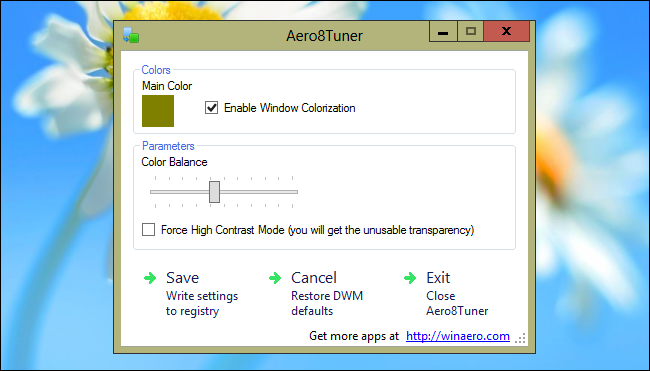

 Assigned Access has also resurfaced as the feature was absent in the Windows 8.1 Pro Preview even though no such indication of removing this service had been seen in the leaked builds prior to Pro Preview. Regardless, the comeback is welcome. With Enterprise Preview, Windows users will have the option to side-load internal Windows application. A beneficial addition to routines developing applications that need to be run on their operating systems.
 Further releases to this preview are expected to be out soon meanwhile you can get your Windows 8.1 Enterprise Preview downloaded.
 The device became the source of the fire to the entire house when he threw his Galaxy S4 away in panic, which is when the device exploded. Upon inquiry, it has been found out that the man owned genuine Samsung Galaxy S4 device along with genuine battery and charger of the same. It is highly unlikely that the fire could have been a result of fake electronic devices.
 Dan Seifert from The Verge has reported Android 4.3 to fix the issue faced by Nexus 7 users for almost a year now. Good tidings of Dan:
 Sood also uploaded an image of “BiometricKitUI” folder that supposedly has the code for users with an activated
  Also Read:
 | You are subscribed to email updates from Techmell To stop receiving these emails, you may unsubscribe now. | Email delivery powered by Google |
| Google Inc., 20 West Kinzie, Chicago IL USA 60610 | |


 Step 4: Scroll down the "End User License Agreement" and then click "Accept" at the bottom of the screen. If you directly click "Accept" without scrolling down the License Agreement, it will not work.
 Step 5: Now select "Custom Installation" and click "Next Step".
 Step 6: So, your Bullzip PDF Printer is just going to be downloaded.
 Install Bullzip PDF Printer in Windows 8.1
 Step 2: You will be asked to select a language and click "OK".
 Step 3: Now the Setup screen will appear before you, where you need to click "Next" to continue installation.
 Step 4: You need to show your consent for installing this software by clicking "I accept the agreement" option and click "Next".
 Step 5: Now select a destination where you want to install Bullzip PDF Printer and click "Next".
 Step 6: Check the icons if you want to have a desktop icon or
  Step 7: Now the system will start installation. Wait for a while until you get the next message.
 Step 8: Click "Finish" as you have successfully installed the application.
 Tutorial to Print PDF in Windows 8.1
 Step 2: Right click on the document. You will see "Print" option at the bottom of the screen to the right corner. Click on it.
 Step 3: Now some printers appear before you where you need to select "Bullzip PDF Printer".
 Step 4: Now edit the settings according to your requirements and click "Print" to print this document.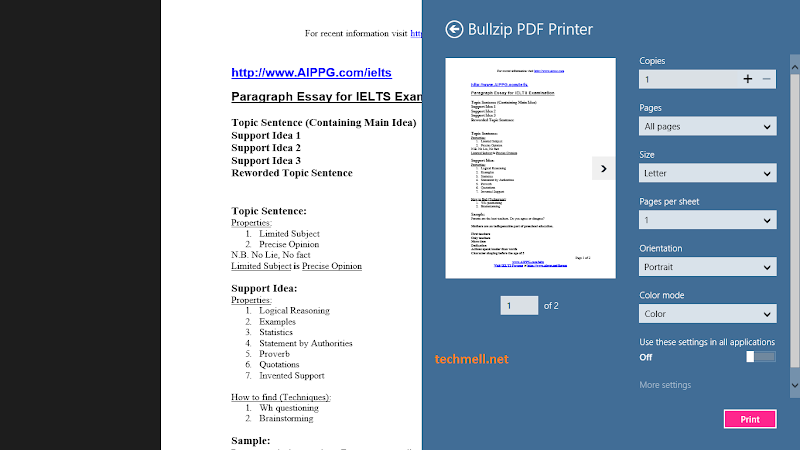


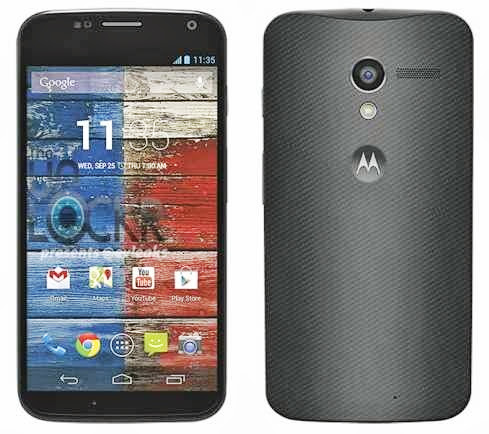 One such rumor reported
 The Smartphone is said to have a rear shell that can be further customized as nowhere else. Fr, a French site, has posted images regarding the matter.
 Step 2: You will see the "Start" button at the bottom of the screen on the left corner. Instead of left click, you need to right click to the "Start" button.
 Now the hidden mini god mode appears on your screen. You will find all of the important programs including Device Manager, RUN, Disk Management, Control Panel, Network Connections, Windows Mobile Shell with admin rights, Programs and Features and many other important programs in the list.
 Similar cases have been reported before. Remember the HBO request to Google? It contained a torrent link directed to an open source VLC media player. HBO's request targeted a fairly legal open source service instead of pointing at some HBO's own issues to shows. Just proves, companies need to think twice before getting at loggerheads with Google.
 Step 3: Once you click this sign, a charms bar will appear on the screen to the right side. Here you need to select the "Settings" option as it has been shown in the image below.
 Step 4: Now you will see the option "Change PC Settings". Click this option to move further.
 Step 5: Here, you will see "Lock Screen" image that should be clicked.
 Step 6: Now the features of "Lock Screen" will appear before you.
 You will see some background images that can be used to your logon screen. Select one of them with a click of the mouse and it will appear in the Preview section. It shows that you have set a background image for your Logon Screen.
 Play a Slide Show to the Lock Screen
 Step 2: Below you will see the option "Add a Folder" under the category "Use Picture From". Click on this option to add your desired folder you want to play in the slide show on your logon screen. Browse for the folder in different locations on your PC and add it.
 Now you will see your favorite pictures running on the Logon Screen in a slide show.

